KIRA rolling gate control, transmitter
59802760 (07/25)
59802760 (07/25)
 Read and adhere to these installation instructions before conversion.
Keep these installation instructions for future reference or for future owners.
The conversion kit consists of:
Component | Description | Quantity [pieces] |
|---|---|---|
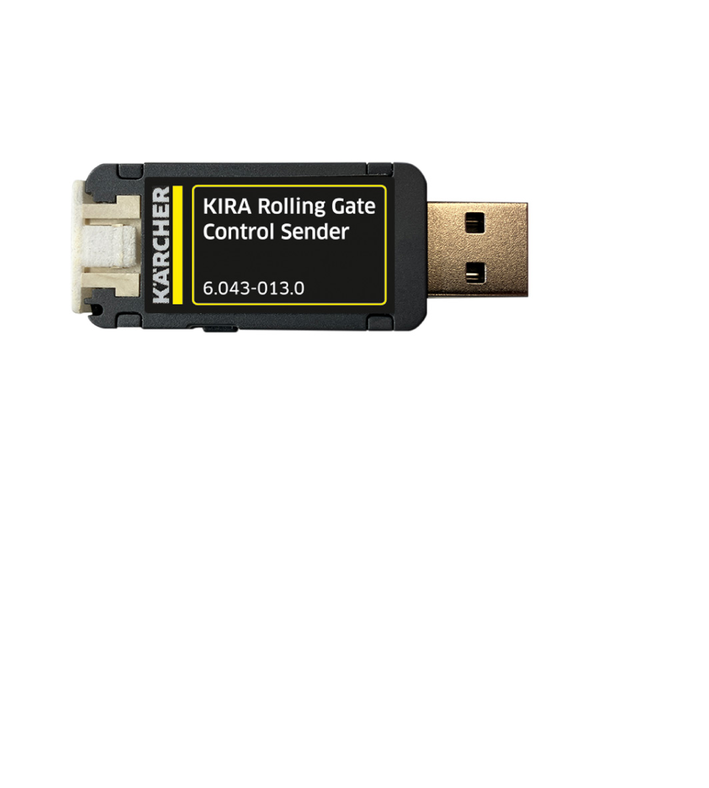
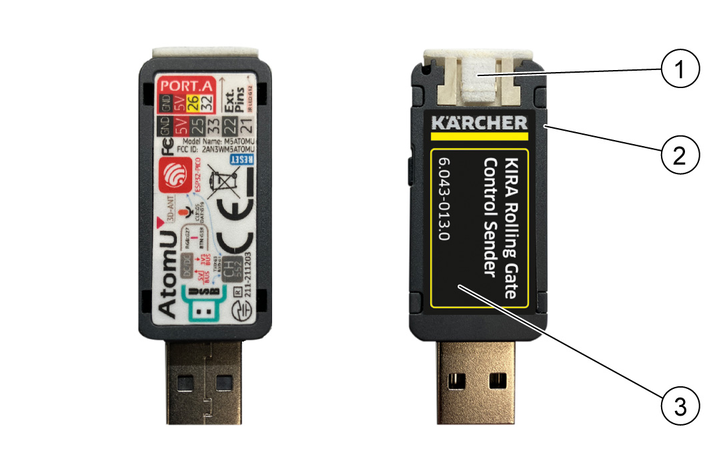
6.043-017.0 | USB stick, transmitter | 1 |
5.043-365.0 | Protective of cover USB stick, transmitter | 1 |
6.043-016.0 | Label for USB stick, transmitter | 1 |
5.980-276.0 | Conversion instructions for rolling gate control, transmitter | 1 |
Protective cover and sticker are pre-attached on delivery.
The rolling gate control extension kit may only be used on rolling gates with force limiting devices or electro-sensitive protective equipment, e.g. gates of the type C (or D/E) in accordance with DIN EN 12453.
The rolling gate control extension kit for 2 relays consists of 2 modules:
KIRA Rolling Gate Control, transmitter
KIRA Rolling Gate Control, receiver module
The transmitter and receiver module must be installed by the user.
Indication of an imminent threat of danger that will lead to severe injuries or even death.
Indication of a potentially dangerous situation that may lead to severe injuries or even death.
Indication of a potentially dangerous situation that may lead to minor injuries.
Indication of a potentially dangerous situation that may lead to damage to property.
Inadvertently starting up device, touching live components
Risk of injury, electric shock
Before carrying out any work, disconnect the unit from the docking station or unplug the mains plug. The packing materials can be recycled. Please dispose of packaging in accordance with the environmental regulations.
 Electrical and electronic devices contain valuable, recyclable materials and often components such as batteries, rechargeable batteries or oil, which - if handled or disposed of incorrectly - can pose a potential danger to human health and the environment. However, these components are required for the correct operation of the device. Devices marked by this symbol are not allowed to be disposed of together with the household rubbish.
Current information on content materials can be found at: www.kaercher.de/REACH
Only use original accessories and original spare parts. They ensure that the appliance will run fault-free and safely.
Information on accessories and spare parts can be found at www.kaercher.com.
The warranty conditions issued by our relevant sales company apply in all countries. We shall remedy possible malfunctions on your appliance within the warranty period free of cost, provided that a material or manufacturing flaw is the cause. In a warranty case, please contact your dealer (with the purchase receipt) or the next authorised customer service site.
Further information can be found at: www.kaercher.com/dealersearch
Further warranty information (if available) can be found in the service area of your local Kärcher website under "Downloads".
Inadvertently starting up device, touching live components
Risk of injury, electric shock
Before carrying out any work, disconnect the unit from the docking station or unplug the mains plug.Material damage through incorrect installation
Allow only qualified staff to perform the installation.You must also observe the operating instructions and safety instructions for the cleaning robot.
Tools required:
TORX 15 screwdriver
Switch off the cleaning robot, see the operating instructions of the cleaning robot.
Disassemble the detergent tank.
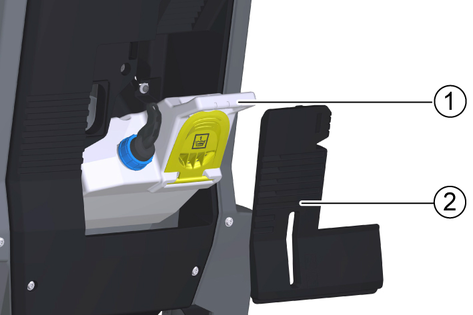
Remove the cover.
Remove the detergent tank.
Remove the cover of the USB port using a TORX 15 screwdriver.
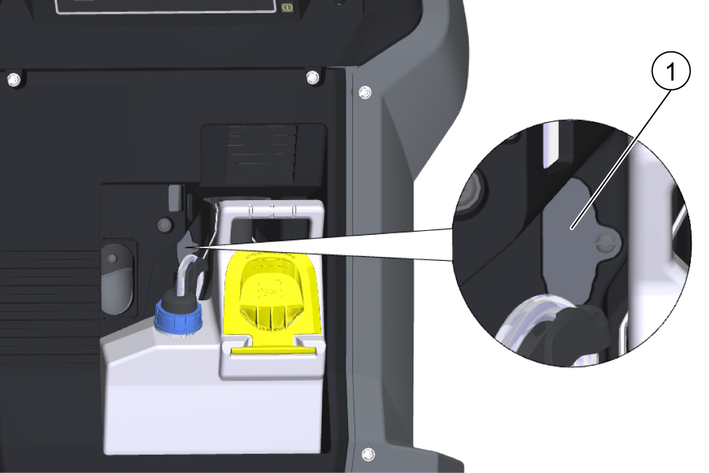
Insert the USB stick into the USB port.
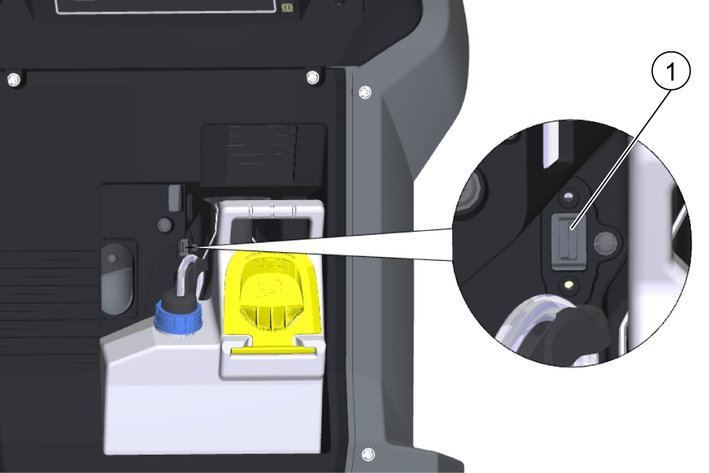
Install the detergent tank.
Insert the detergent tank. Take care not to damage the transmitter.
Fit the cover.
Switch on the cleaning robot, see the operating instructions of the cleaning robot.
Switch off the cleaning robot, see the operating instructions of the cleaning robot.
Installing the USB stick:
Open the door of the device compartment.
Unscrew the screws on the cover and remove the cover.
Insert the USB stick into the USB port.
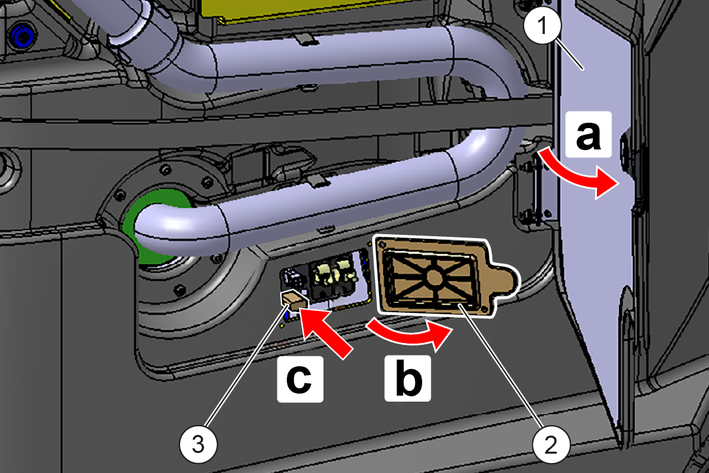
Fit the cover and tighten the screws.
Open the door of the equipment compartment.
Switch on the cleaning robot, see the operating instructions of the cleaning robot.
Prerequisites:
A receiver is fitted for each rolling gate to be set up.
The cleaning robot has been converted and is in the transmission range of the receiver.
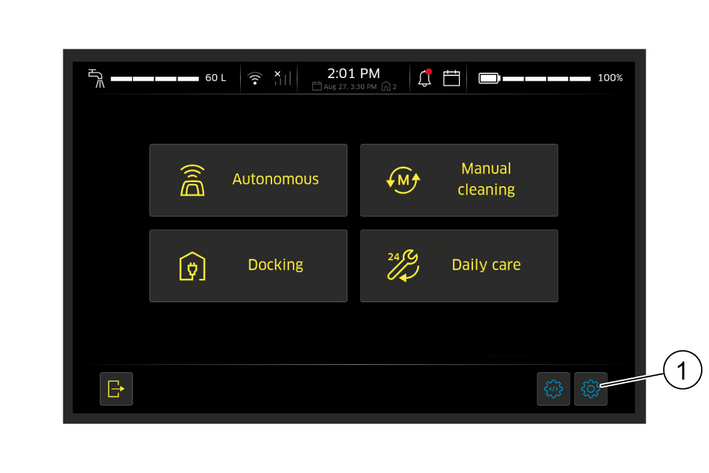
Switch on the control panel using the start button.
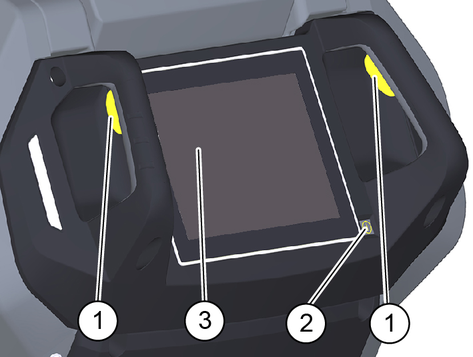
Press the Settings symbol on the touchscreen.
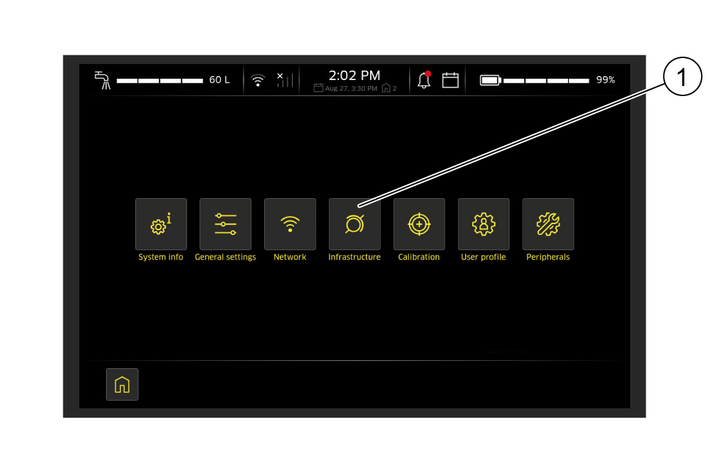
Select the Infrastructure menu.
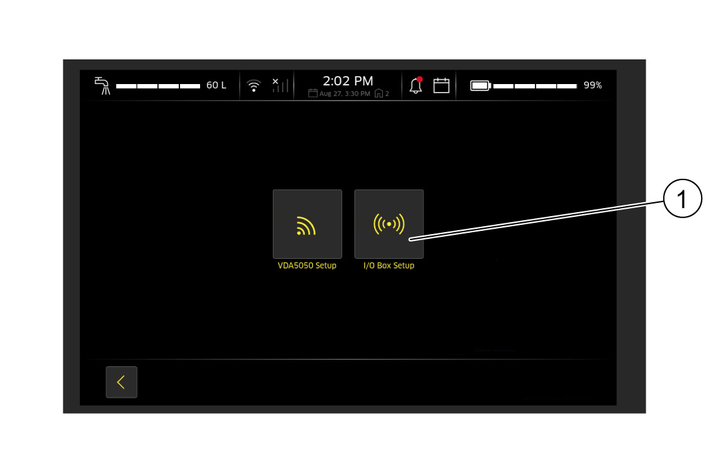
Select I/O Box Setup.
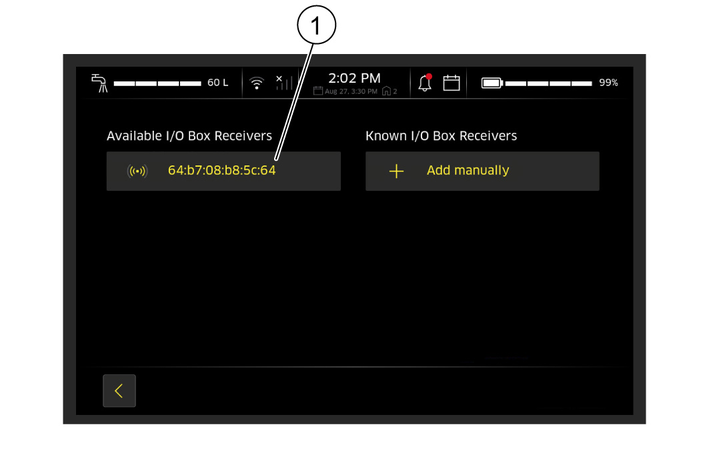
All selectable receivers are displayed.
Select a receiver (rolling gate) from the list.
Assign a name and a type to the receiver (rolling gate).
Assign the "Default gate" type to the receiver.
If you have created one receiver per gate, assign the type "Default gate" to the gate. When the cleaning robot reaches a default gate zone, it triggers the gate control of the associated receiver.
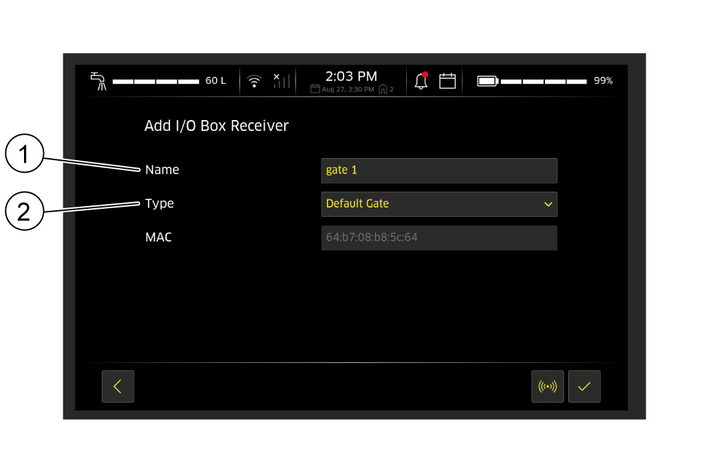
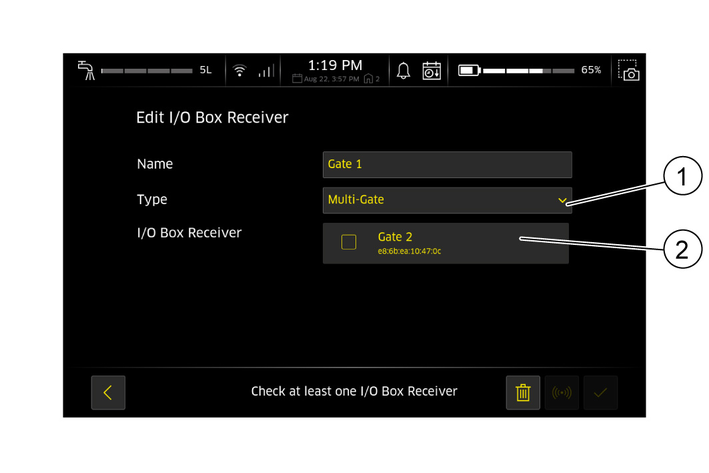
Optional: Assign the "multi-gate" type to the receiver.
A multi-gate offers the option of opening several gates within a zone. This means that when the cleaning robot reaches a multi-gate zone, it activates the gate control of multiple receivers. This can be an advantage if several rolling gates are located next to each other, e.g.in a corner.
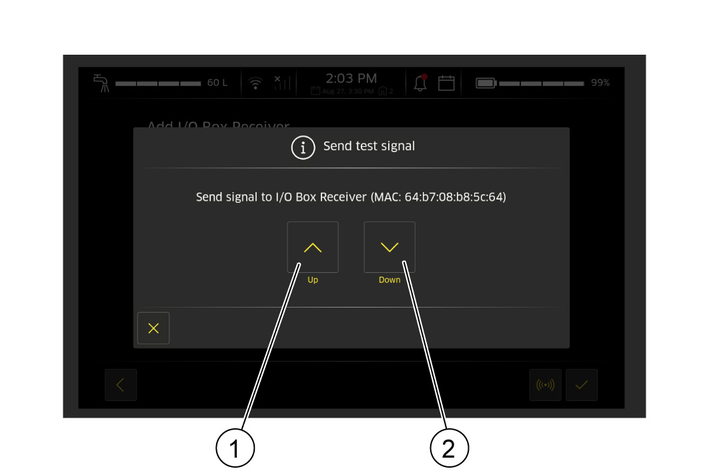
Use the up and down buttons to test the function of the transmitter.
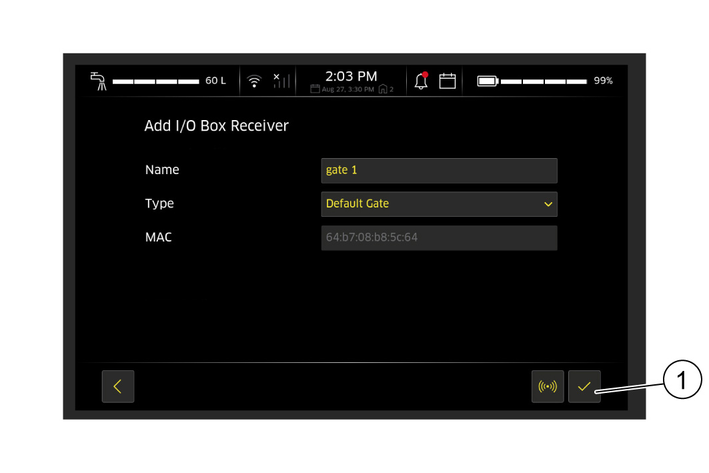
Confirm the selection by pressing the tick.
Repeat step 5 ... 8 for further receivers (rolling gates).
Switch to map editing. See the operating instructions of the cleaning robot KIRA B 50.
Press the Settings symbol on the touchscreen.
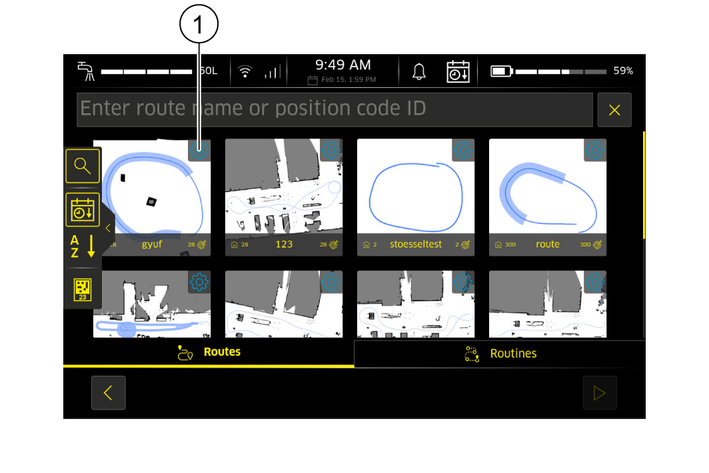
Set up the zone.
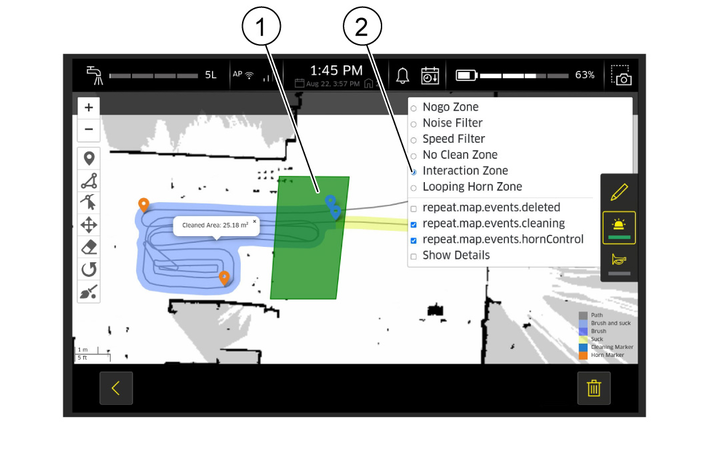
Open the zone selection. The green area defines the zone in which the gate control responds.
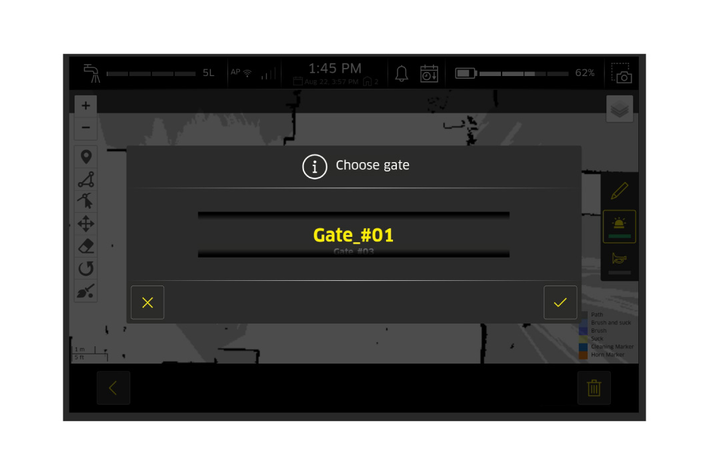
Select the gate. There is no standard assignment for a zone, i.e. , if no gate is selected, the gate control in the zone does not respond.
Select the 'interaction zone'.
The cleaning robot opens the assigned gate when entering the green zone.
Prerequisites
A receiver with a voltmeter is fitted for each rolling gate to be set up.
The cleaning robot has been converted and is in the transmission range of the receiver.
The cleaning robot is started up with the transmitter (USB stick) plugged in.
Switch on the control panel using the start button.
Press the Settings symbol on the touchscreen.
Select the
Select
All selectable receivers are displayed.
Select a receiver (rolling gate) from the list.
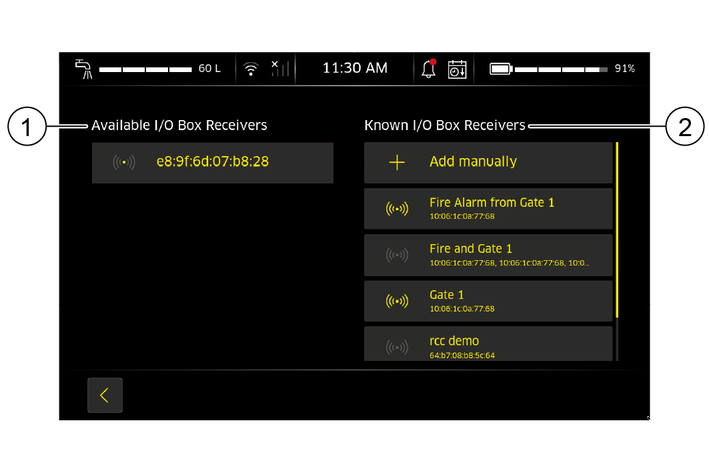
Assign a name and a type to the receiver (rolling gate).
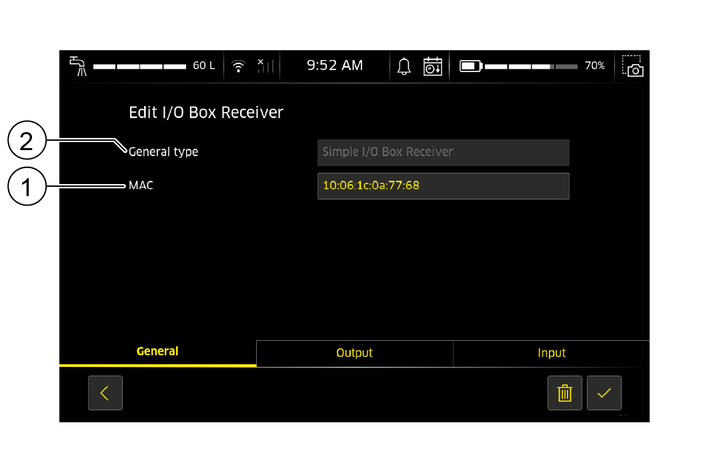
Assign a type to the receiver.
Assign a "MAC address" to the receiver.
An output signal can be set to the receiver and / or an input signal can be set from the receiver.
Output signal: The cleaning robot sends a signal to the receiver to open gates in the corresponding interaction zones.
Input signal: The cleaning robot receives a signal from the receiver in the event of a fire alarm. The repetition in the corresponding interaction zones is automatically interrupted.
Set an output signal to the receiver.
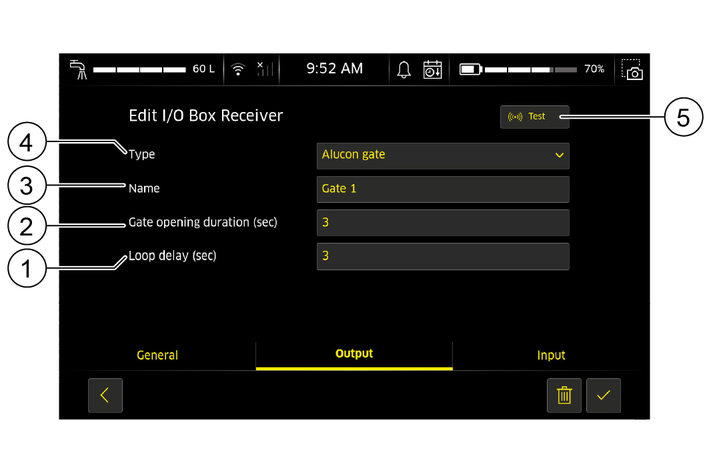
Select the type. Use
Assign the name.
Enter a value in seconds for the duration of the gate opening. As some gates stop the opening process when the opening command is sent a second time, you can set here how long the cleaning robot waits after the first command.
Enter a value in seconds for the loop delay. As Alucon gates close automatically after a certain time, you can specify the time after which the opening command is sent again.
To test the connection, press the test button.
Set an input signal from the receiver.
There are fire alarm systems that trigger above a certain threshold value and systems that trigger below a certain voltage. Both options are selectable. In the example shown, the voltage drops below 10 V in the event of a fire alarm.
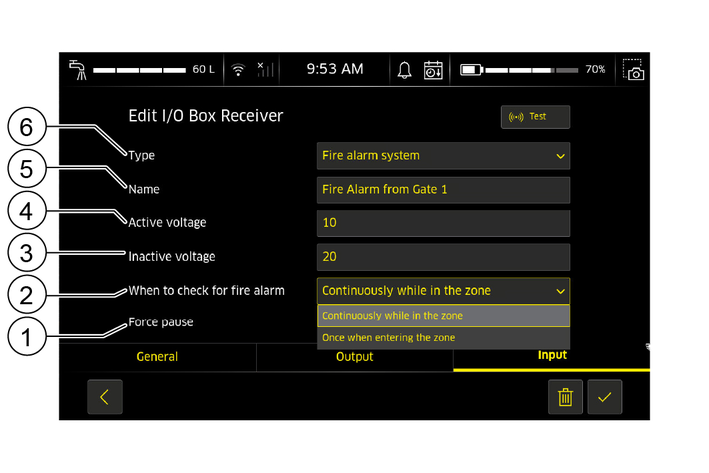
Select
Assign a
In
In
Select when the cleaning robot should listen for fire alarms. There are 2 options to choose from:
Continuous: As long as the cleaning robot is in the interaction zone, it pauses the repetition. There should be a zone on each side of the gate where the cleaning robot approaches during the repetition. The zone should not be below the gate, as the robot would then also pause directly below the gate if the fire alarm is triggered there.
Once when entering the zone: The cleaning robot only checks the fire alarm once when it enters the interaction zone. If the fire alarm is active, it stops the repetition at the boundary of the zone. If the fire alarm is triggered while the cleaning robot is in the centre of the area, it continues on its way. This option can be used with an interaction zone above the door.
Activate/deactivate forced pause.
Option activated: The cleaning robot also overrides repetition requests from a person on site. The repetition cannot be continued, only cancelled.
Option deactivated: The pause sent by the fire alarm signal can be cancelled.
Option: Set up a combined receiver.
To create interaction zones that serve as input and output triggers or as triggers for more than one gate, an additional combined receiver must be created, as overlapping zones do not work.
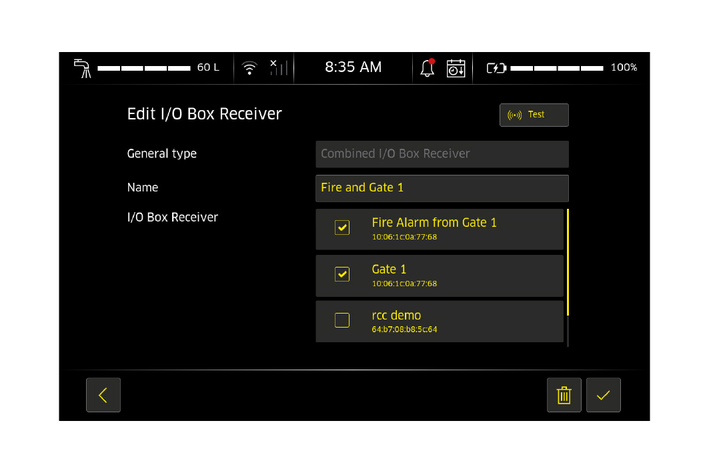
Example of a combined receiver
In the example shown, the combined receiver receives the commands sent to "Gate 1" and the "Fire alarm from gate 1" input.
By using the option to check the fire alarm once when entering the zone, the cleaning robot is prevented from being stopped under the gate in the event of a fire alarm.
The cleaning robot also opens the gate if it is stopped when entering the zone. If this is not desired, separate zones must be used for the gate control and the fire alarm.
Switch to map editing. See the operating instructions of the cleaning robot KIRA B 50.
Press the Settings symbol on the touchscreen.
Set up an interaction zone.
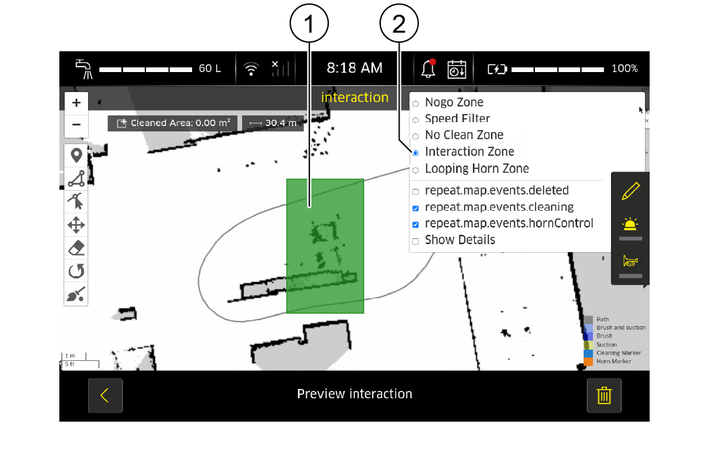
Open the zone selection. The green area defines the zone in which the gate control responds.
Select the gate. There is no standard assignment for a zone, i.e. , if no gate is selected, the gate control in the zone does not respond.
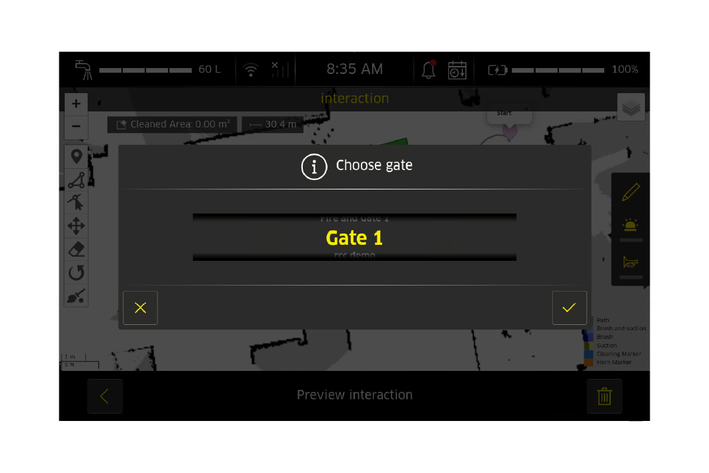
Select the 'interaction zone'.
The cleaning robot opens the assigned gate when entering the green zone.
Set up separate zones for fire alarms.
The interaction areas must not overlap.
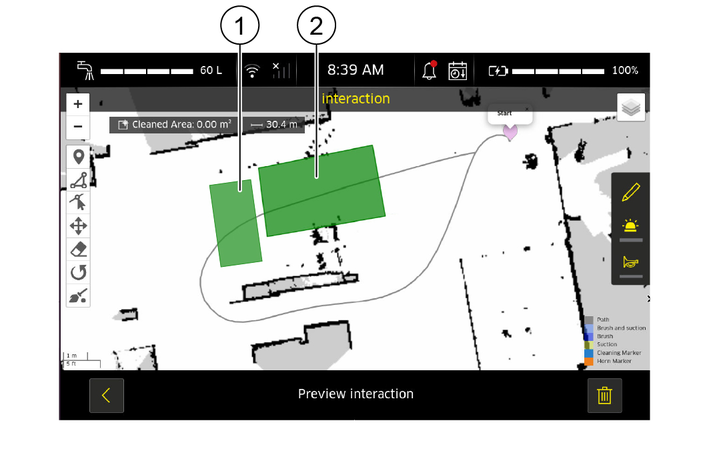
Open the zone selection. The green areas define the zones in which the gate control responds or the fire alarms are triggered.
Select gate for fire alarm.
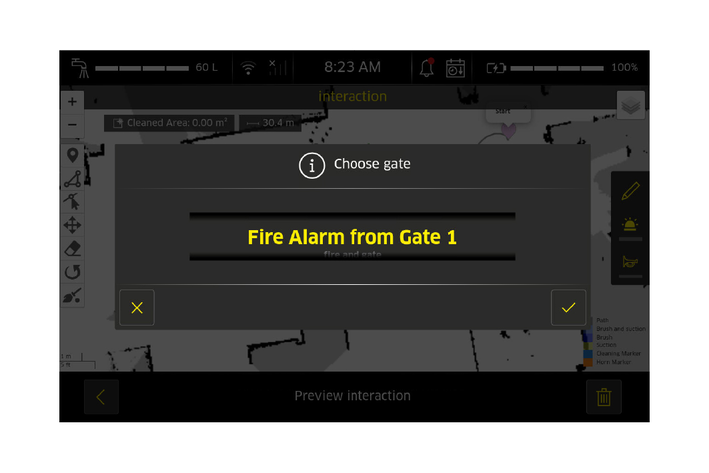
For
Set up combined interaction zones with fire alarm.
The cleaning robot also opens the gate if the cleaning robot is stopped when entering the zone. Use separate zones for the gate control and the fire alarm as described in step 13 if this is not desired.
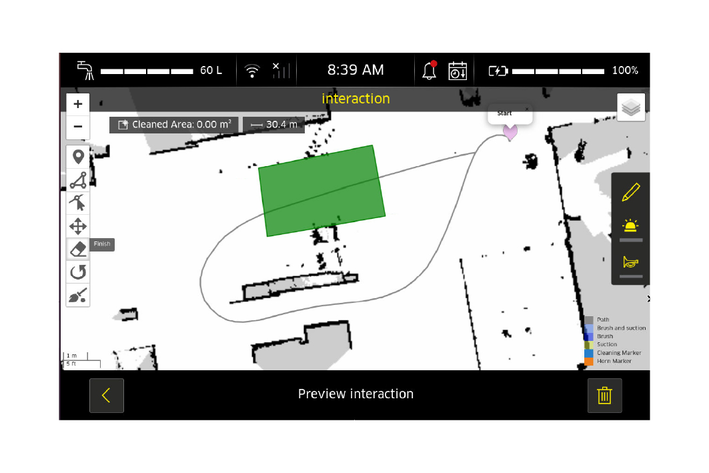
Open the zone selection. The green area defines the zone in which the gate control responds and the fire alarms are triggered.
Make the areas large enough so that the gate is already open when the cleaning robot reaches it, so that the cleaning robot can move smoothly.
Select gate for fire alarm.
For
0-0-0-A4-GS-AW19869